Sync Staff App
This guide explains how to sync the Staff App. Syncing ensures that any changes made in the Merchant App (such as new products, price changes, table settings, or printer configurations) are updated in the Staff App.
When to Sync
You should sync the Staff App whenever you have:
- Added or edited products/categories in the Merchant App.
- Changed prices or GST settings.
- Updated table or printer settings.
- Changed store/terminal configurations.
- When the same staff credentials are used on multiple devices—sync the Staff App before and after switching devices for billing.
Step 1: Open the Menu
- Tap the profile icon in the main menu and select Settings.
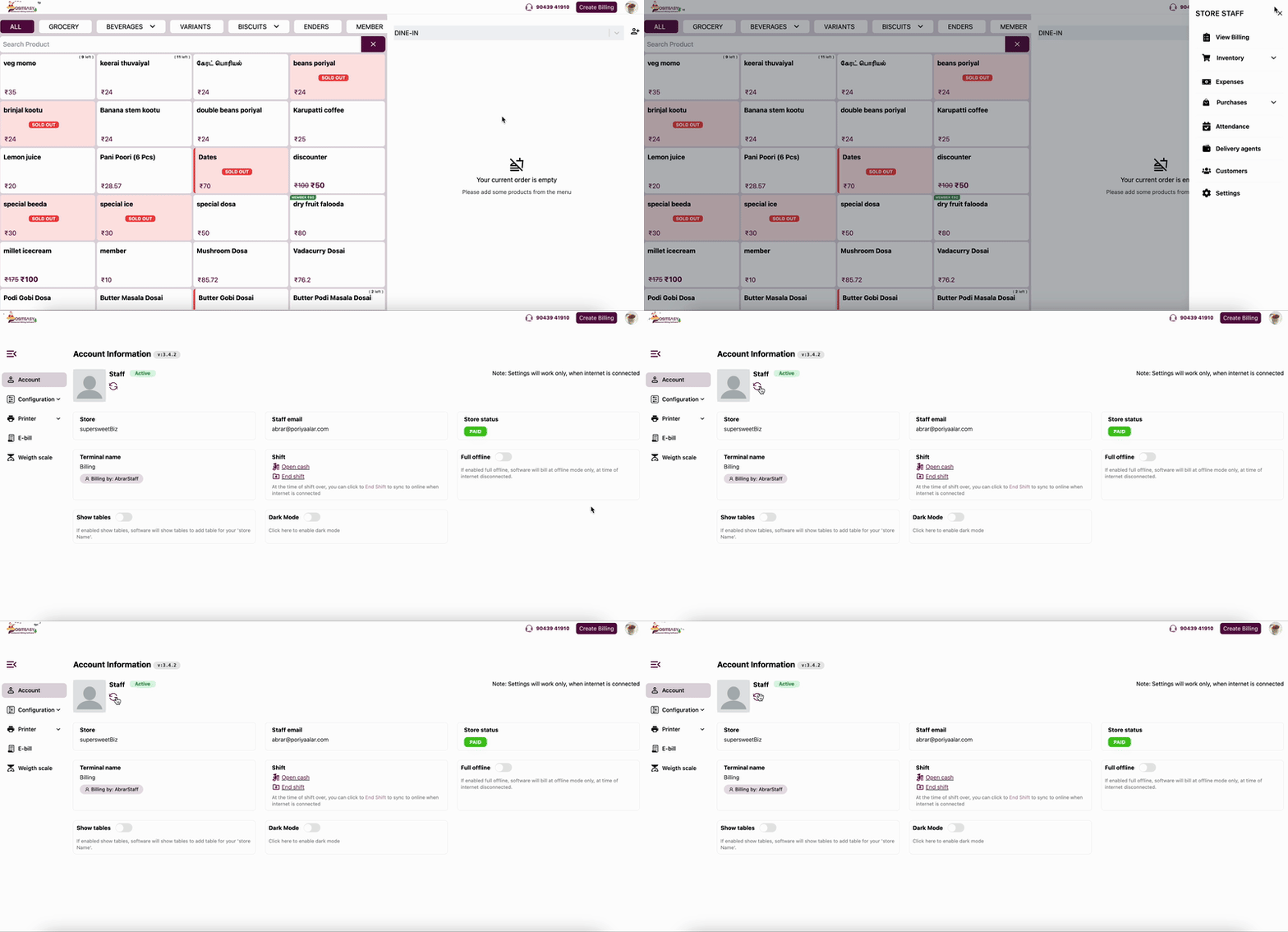
Step 2: Tap Sync
- Tap
 to get the latest settings and menu updates.
note
Ensure your device is connected to the internet before starting the sync process.